2025-Microsoft E3 Developer Account_Expand 5TB OneDrive Space_Free Office Forever
*This article collated quotes from the Bilibili video UP master: 奶昔只会qwq , video tutorial link please refer to the following.
This article is mainly organized to introduce how to get a free Microsoft Office E3 developer account, and OneDrive space free expansion to 5TB method. The video content roughly includes a detailed operation and low threshold tutorial specially prepared for users who want to expand OneDrive space for free and experience genuine Office services.
Preparation
1, it is recommended to create a new Microsoft Azure account, easy to operate and manage, of course, you can also use your original account;
2, the following operation involves the selection of countries and regions, it is recommended that you choose China, so that the payment options in the back of the optional Alipay (Alipay) to bypass the Visa credit card verification;
3、Part of the region can not access the use of OneDrive, you need to bring their own adjustable network capacity.
Video Tutorial
Video tutorial address: permanent free Office E3 developer account can expand 5TB OneDrive space – https://www.bilibili.com/video/BV1XfCPB6EvT
Creating Azure Account (Personal)
If you want to use an existing Microsoft account, you can skip this step to the next step. It is recommended to create a brand new account for easy operation and management, first open the azure.com website and create it.
1、Click the top right corner of the azure website 【sign in】.

2、Click 【Create one】.

Managed Azure account
Once created, login will take you directly to the Azure Portal (console). If you have just opened a new account or have never used Azure before, you will be redirected to “Create an Azure account with pay-as-you-go pricing” after signing in.
1. This is important! If you want to bind Alipay, the country/region here must be China, if you want to bind a foreign currency card (Visa/MasterCard), please select the country or region corresponding to the card, such as binding HSBC Blue Lion please select Hong Kong SAR, otherwise it will not be verified.
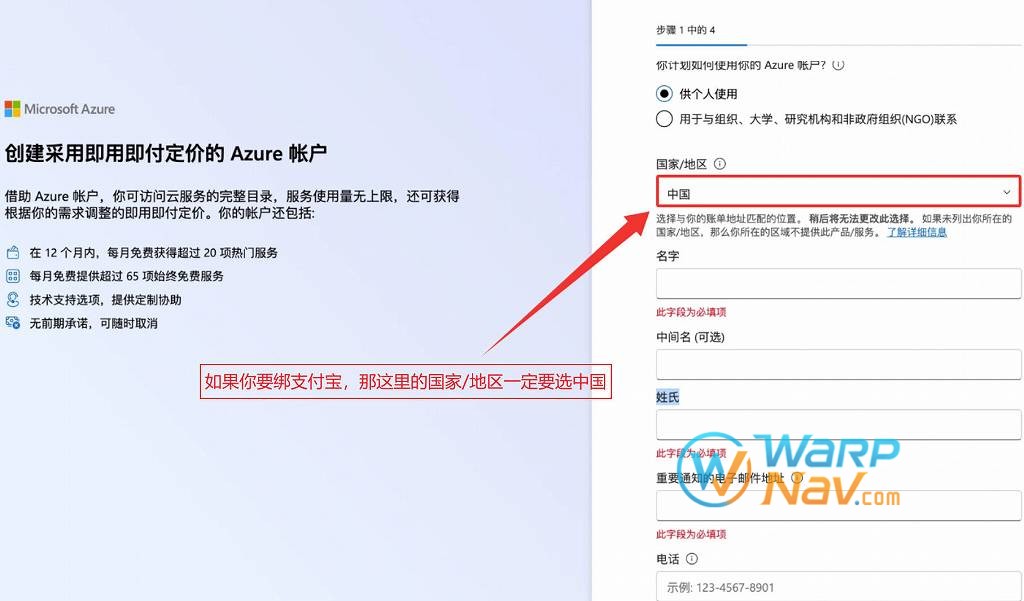
2, after the next step, you will be asked to bind foreign currency VISA card, stop this step. Directly close this page, this payment method will be added later in the Microsoft Admin side.

3, close the above page, use the browser to visit portal.azure.com will be directly logged into the Azure console, and search for “users”.
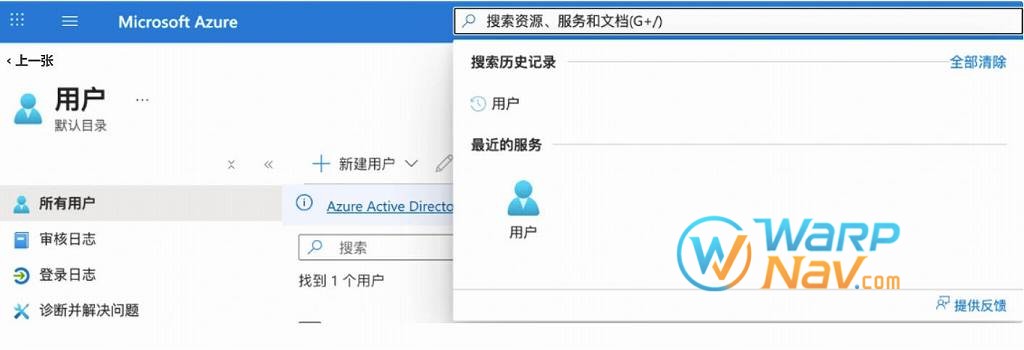
4. There will be a preset account with a user subject name of xxx_outlook.com#EXT#@xxx.onmicrosoft.com. You need to copy the above subject name and open https://admin.microsoft.com/ to login. Then click “Forgot your password” to reset it.
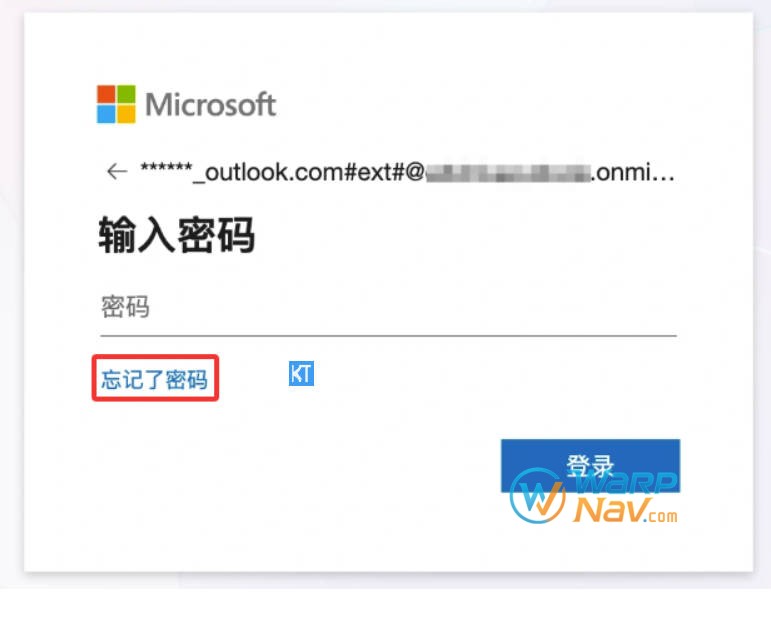
5. The reset verification code will be sent to the Microsoft account email address in the first step above. After completing the reset process, you will enter the Office management interface.
Open Office E3 Subscription
1, in the search box enter e3 search, find e3 developer or e3 symphony, and then click “Details”.
If you can’t find it, you can also click this link to subscribe: https: //admin.cloud.microsoft/? #/catalog/offer-details/office-365-e3-developer/C69E7747-2566-4897-8CBA-B998ED3BAB88
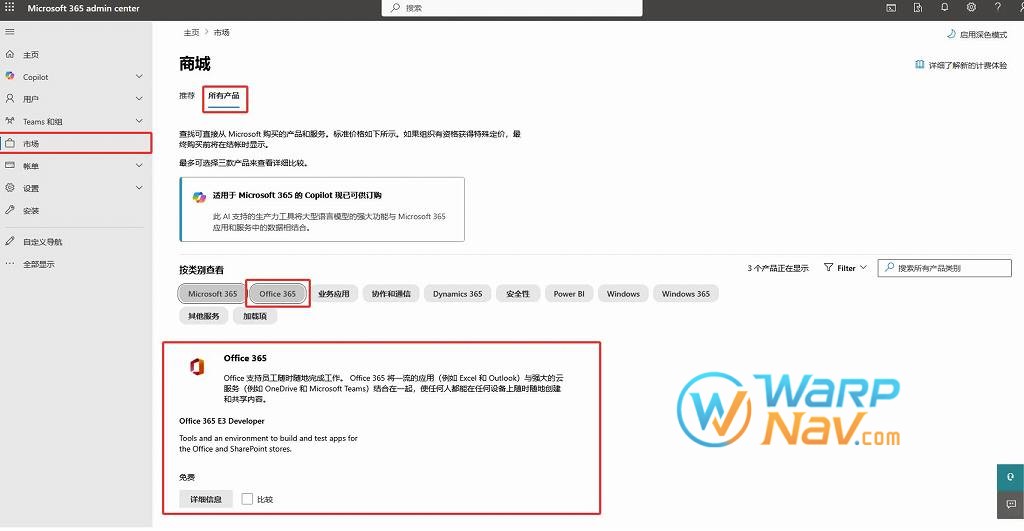
2, the number of authorizations here can write 1 ~ 25, any number, it is recommended to be conservative on the good.
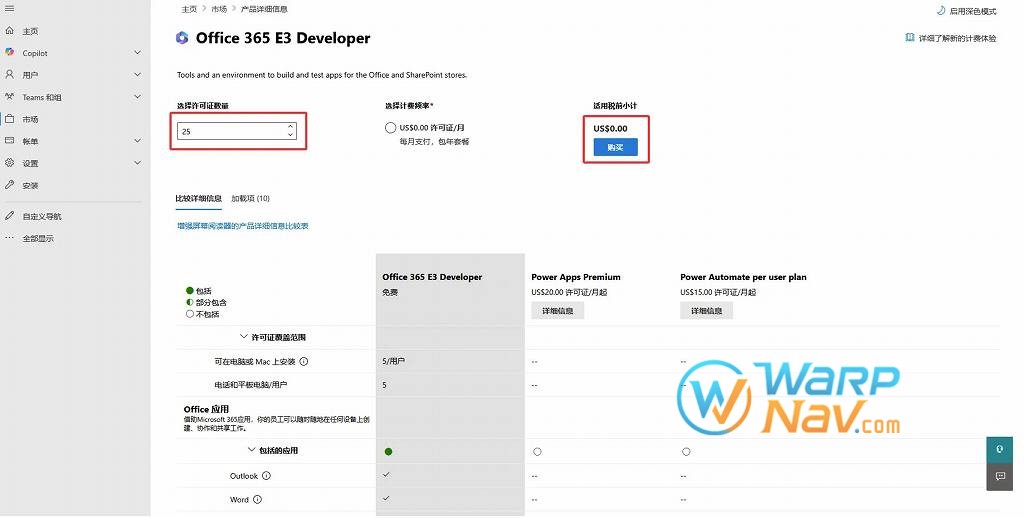
3, after filling out the supplementary payment information. Above ITIN can be randomly lost, and then choose Alipay.

4, Note: Incidentally dev is a year (need to change the monthly to annual), while symphony seems to be 3 months to renew once.
Login Privileges Problems
1、If you encounter the login error as shown below after creating an account, you have no right to access the situation:
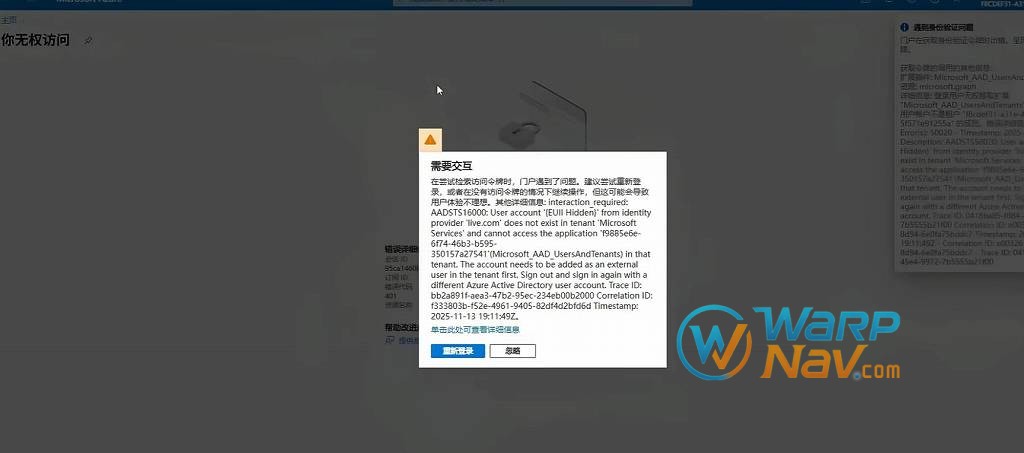
2, you need to click this to open this link: https: //azure.microsoft.com/en-us/pricing/purchase-options/azure-account?icid=azurefreeaccount and walk through the Try Azure for free process and it will be solved.

OneDrive Expansion – 5TB
Finally, don’t forget to go to https://portal.office.com/onedrive and change 1024 to 5120, so each person will have 5TB of OneDrive.

Addendum
Finally, on the E3 Developer administration page in the Products section, change the bill payment cycle to annual.

Note: For this step, you need to wait for the official service verification billing to be completed before you can change it, so you can’t change it if you come to change it just after your application is successful, that’s why this step is put at the end.
© Copyright notes
The copyright of the article belongs to the author, please do not reprint without permission.
Related posts
No relevant contents!

No comments...
